All Minecraft mods

Sleep Wake-Up Notifier

See how close your world is to morning.

In bed, but the night is not moving? See how many more sleepers are needed, then get a shared update when the new day begins.

Customize in Mod Menu

Java Edition 26.3 · Fabric

Free · Made by Bearaujus · 606 downloads

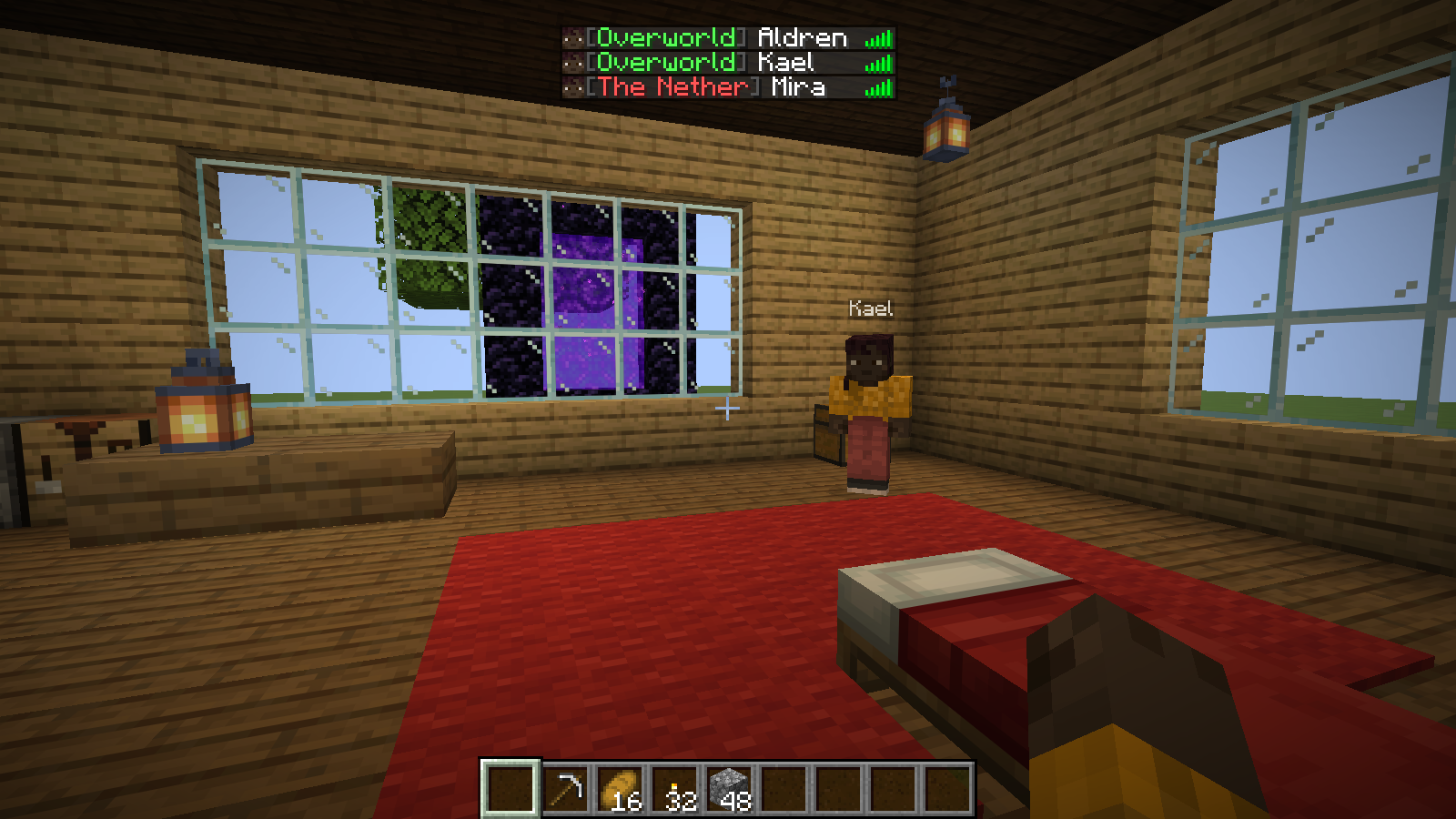
Aldren is in bed: one of three required players is sleeping, so the world is still waiting.Gameplay screenshot
Aldren is in bed: one of three required players is sleeping, so the world is still waiting.

Know what is holding up morning

While you are in bed, the notice above the hotbar shows current progress toward the required sleeper count. You can tell whether to wait or ask another player to sleep.

First example: one of three required sleepers · Improved Sleep absent

Minecraft Java
26.3
Mod loader
Fabric
Mod version
0.1.9+26.3
View this release

In your world

See what changes

This mod explains your world’s sleep rules; it does not lower the number of sleepers by itself. It works with Minecraft’s standard (vanilla) rules and follows Improved Sleep when that companion is installed.

02

Know when the world is ready

When enough players are in bed, a ready cue replaces the progress count. Leave the bed before the skip and the display follows the changed sleeper count.

Second example: vanilla requirement lowered to one sleeper · Improved Sleep absent

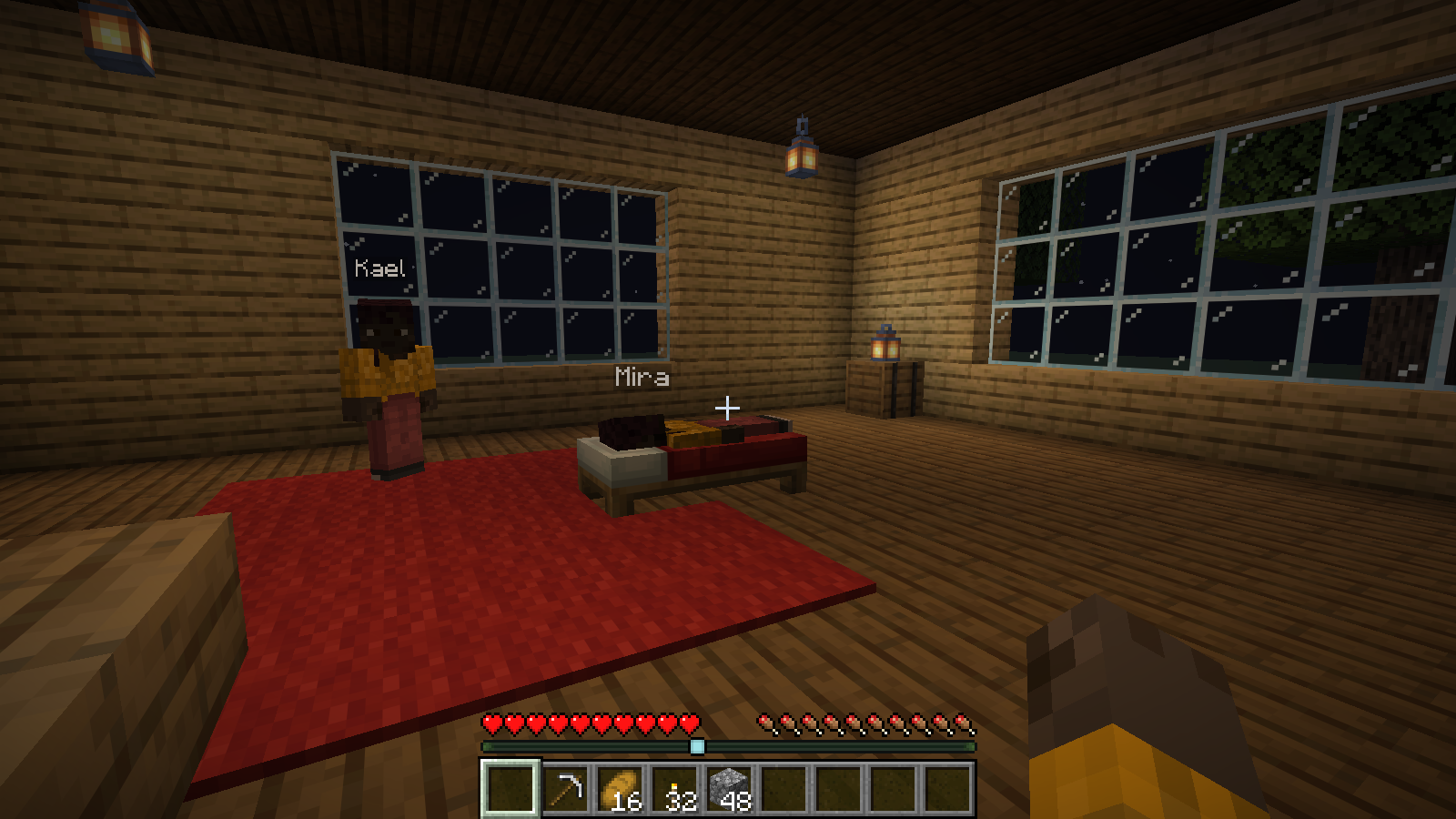
The requirement is met: the contextual action bar changes to Skipping night.Gameplay screenshot
For this second example, the host lowers Minecraft’s requirement to one sleeper. Aldren now meets it, so the cue changes to Skipping night. Improved Sleep is not installed.

03

Understand how the night ended

An optional morning message tells the group that the new day has started and can include the sleeper count. It can also report a morning when nobody slept.

Example: vanilla requirement set to one sleeper · morning broadcast on

With the vanilla sleeper requirement set to one, chat announces Day 2 after one required player slept.Gameplay screenshot
With the vanilla sleeper requirement set to one, chat announces Day 2 after one required player slept.

Make it yours

Choose what appears in your game

Keep only the information your group needs. Server Config controls progress, ready cues, and morning broadcasts. Client Config can override your own sleep display and bed messages when inheritance is off. Custom bed-message fields can stay blank to preserve Minecraft’s wording.

  1. Install Mod Menu alongside this mod and Fabric API on your computer.
  2. Open Mods → select this mod → Configure. Choose Client Config for personal display settings or Server Config for the world.
  3. Choose the controls you want and press Save. Server changes apply to the running world.

Mod Menu is optional client software and the main in-game settings entry. Install this mod, Fabric API and Mod Menu on your computer; open Mods, select the mod, then Configure.

Who can change what? Server Config controls the world hosted by this installation. You can edit a solo world; remote changes require the mod on the server and operator permission. Other players can inspect received settings. From the main menu, Server Config edits local hosting defaults, not a remote server.

Client Config affects this computer. Inherit from Server Config follows overlapping server settings; Enabled uses your personal values; Disabled turns off your client features. Locks identify inherited or unavailable controls. Client-only features remain personal. Child controls appear when their parent feature is enabled.

Save and recover. Changes stay in a draft until Save succeeds. Done asks before discarding an unsaved draft. Defaults resets the editable scope in the draft; press Save to apply it. Wait for pending saves to finish. If permission or connection is lost, read the status and reconnect or regain permission before retrying.

Explore the settings screens

Open a screenshot to inspect the full window at its original size. Continue through the gallery to see the controls further down each screen.

All settings pages3 full-window screenshots

Settings reference

Open a group for its defaults, available controls and dependent options.

Feature modesPersonal and world

Control shared updates and personal overlays independently.

Defaults: Server features on; Client Config inherits.

Server Enabled/Disabled and Client Inherit/Enabled/Disabled. Personal changes do not alter the required sleeper count or shared morning broadcasts.

Morning broadcastsWorld

Announce a new morning, including mornings reached without sleeping.

Defaults: Broadcast, day number, sleeper count and nobody-slept alert on.

Broadcast day start; Add day number; Add players slept count; Include nobody-slept alert. Optional details depend on the broadcast. The count compares sleepers with the required threshold, not every online player.

Sleep progress and ready cuesWorld with personal visibility

Show how many players have slept and when the world is ready to skip. Improved Sleep's effective rule is used when installed.

Defaults: Sleep status, progress and ready cues on; vanilla ready-message wording off.

Server: Show sleep status, Show progress while sleeping, Show ready cue, Use vanilla ready message. Client: Show sleep status. The world owns progress/ready content; a personal override can hide it. This mod reports the rule and does not change it.

Bed messagesPersonal and world

Optionally replace bed interaction notices with your own plain text.

Defaults: Custom bed messages off; all five text fields blank.

Enable custom bed messages reveals: Too far away, Obstructed, Occupied, Not safe and Night cannot be skipped. Blank fields keep Minecraft's message. The last field replaces the cannot-skip notice, not the daytime restriction. Text is literal: names in braces are not substituted.

Try it in your world

Follow these recipes using the existing settings controls.

Choose the sleep cues your group sees

  1. In Server Config → Action Bar, enable Show sleep action bar, Show sleep progress message and Show sleep-ready message.
  2. Leave Use vanilla sleep-ready message off for the contextual skip cue; Save. Turn off progress if your group only wants the ready cue.
  3. Start sleeping. With Improved Sleep installed, change its threshold to see this display follow the same rule.

What you should see: Progress shows sleepers against the required threshold, followed by a ready cue. These illustrated progress/ready choices are the defaults; changing the toggles is optional.

Server Config, page 1: morning details, sleep progress and the ready cue are enabled.Settings screenshot
Server Config, page 1: morning details, sleep progress and the ready cue are enabled.
Aldren is in bed: one of three required players is sleeping, so the world is still waiting.Gameplay screenshot
Aldren is in bed: one of three required players is sleeping, so the world is still waiting.

Step by step

Install & play

Match your game version before adding the mod.

Playing solo
Install in your Fabric game
Server owners
Required on the server
Joining players
You can join without installing it

Choose how you play. These instructions are for Minecraft Java Edition with Fabric; Bedrock Edition uses a different add-on system.

Single-playerInstall on your computer
  1. Set up Fabric for Minecraft 26.3

    Fabric Loader lets Minecraft run Fabric mods. In the official Minecraft Launcher, run this Minecraft version once, close the game, then use the Fabric installer to create a matching Fabric installation. If your launcher manages mods, create a Fabric instance for the same version.

  2. Download the mod and its requirements

    Open release 0.1.9+26.3 on Modrinth . Download the .jar file and every dependency marked “required”. Fabric API is a separate mod from Fabric Loader; add it if the release requires it.

  3. Put the files in the right folder

    With Minecraft closed, open the game folder for your Fabric installation. In the official launcher, go to Installations and use that installation’s folder button. Open or create a folder named mods, then place the downloaded .jar files inside. Leave the files as they are; do not unzip them.

  4. Launch Fabric and try the mod

    Select your Fabric installation in the launcher and press Play. Open a world to use the mod. Single-player runs its own local server, so you do not need to set up a separate server.

I run a multiplayer serverInstall for your world’s players
  1. Prepare a matching Fabric server

    Use Minecraft 26.3 and Fabric Loader. A standard vanilla, Paper, or Spigot server cannot load a Fabric mod. Your hosting panel may offer Fabric; otherwise follow the Fabric server setup guide.

  2. Add the mod while the server is stopped

    Back up your world, stop the server, then download this release and its required dependencies. Put the .jar files in the server’s mods folder.

  3. Restart and check the player requirements

    Start the server again. Joining players can play without installing this mod. An optional client installation may add features described on the project page.

I join someone else’s serverCheck with the server owner

The server owner must install this mod on the server. Adding it only to your own game will not enable its server features.

Your own installation is optional. You can join without it; check the project documentation if you want the optional client features.

Something isn’t working?
  • Game does not start: read the Fabric error for a missing dependency or version mismatch. Match Minecraft, Fabric, and the mod’s release requirements.
  • Game starts but nothing changes: check that you launched the Fabric installation and used its own mods folder. For multiplayer, check that the server has the mod too.
  • Need to adjust the behavior: use the mod’s documentation for its settings and support links.
Project documentation & support Fabric’s illustrated installation guide

This release

What’s new

0.1.9+26.3 on Modrinth ·

Changed

  • Fabric compatibility: Refreshed for Fabric Loader 0.20.1 and Fabric API 0.165.0+26.3 on Minecraft 26.3.

Notes

  • The minimums remain Fabric Loader 0.19.3 and Fabric API 0.160.5+26.3; newer compatible versions are accepted. Mod Menu remains optional.
  • Existing settings, defaults and gameplay behavior are unchanged.

Browse earlier releases on Modrinth